A CSV-to-dashboard workflow turns rows and columns from a local file into a first dashboard draft: Juggle Dash reads a CSV in the browser, infers whether fields are strings, numbers, or dates, and uses that structure to suggest KPI cards, charts, and a ranking table. You can revise the draft by dragging and resizing panels, then export HTML or DSL JSON. Import and parsing happen in the browser; the file is not uploaded to a Juggle Dash data server.
What the draft contains
Numeric columns can serve as measures for KPI cards and charts. A date column can provide a time axis, while string columns can describe categories such as channel, customer, or segment. The generator uses the field names, types, and sample rows to propose dashboard content; it is a useful starting point, not a promise that every dataset will produce the same panel mix.
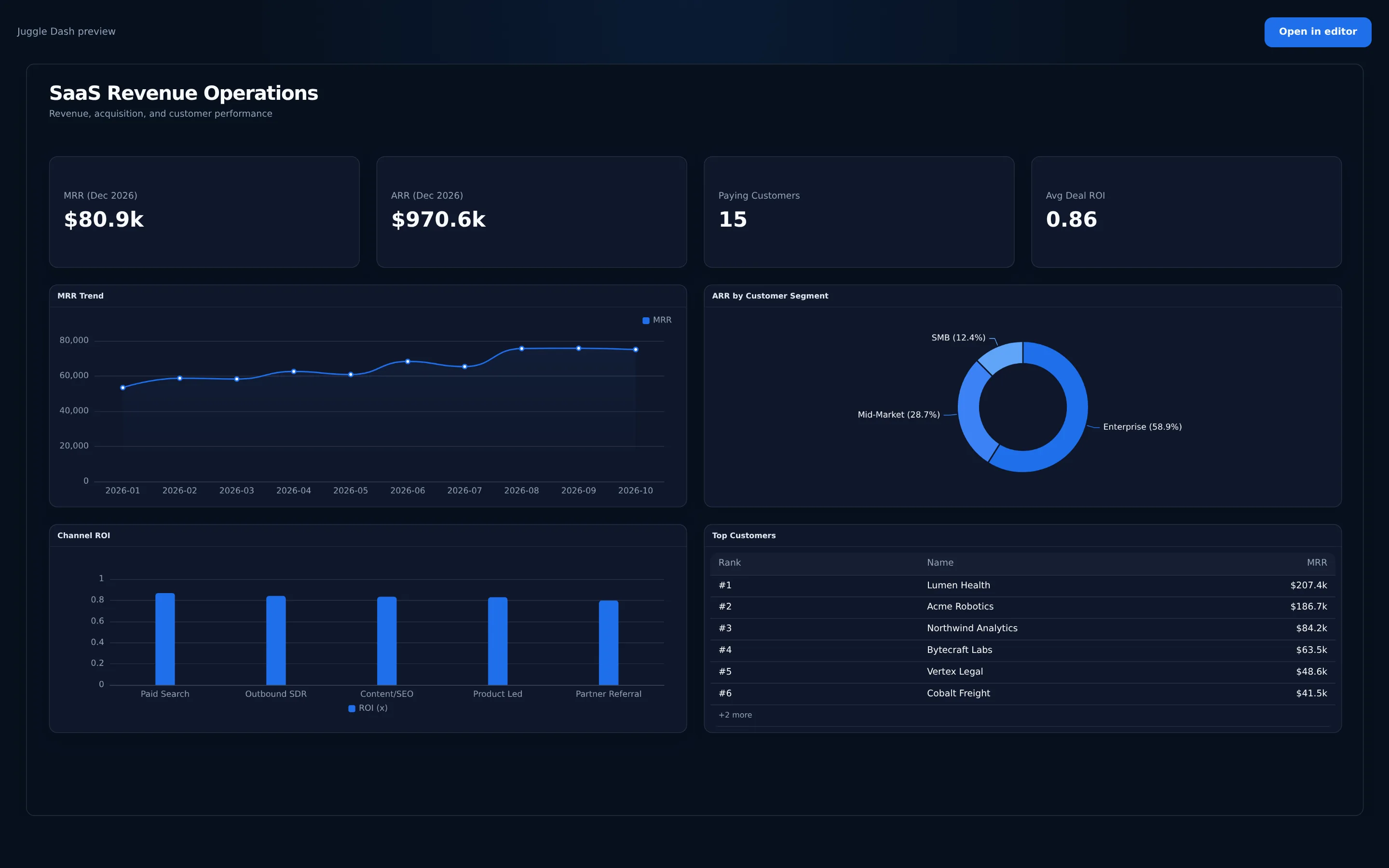
For a concrete example, the saas_revenue_ops sample contains month, channel, customer, segment, plan, MRR, ARR, spend, deals, and ROI fields. A draft based on it can show an MRR trend, channel ROI, ARR by segment, and a top-customer ranking. Open the editor and load the sample data.
What you can change after generation
A generated dashboard is not a flattened picture. Open the visual editor to drag panels into a different order, resize them, change titles, and adjust available aggregations such as sum, average, count, or last value. Undo lets you step back through edits. The dashboard uses a fixed canvas and grid, so visual changes are made to panels rather than by editing chart pixels or writing layout code.
A prompt can guide the initial draft, and English presets provide a starting point when you want a familiar arrangement. Review the labels and measures against the source columns before you deliver the result; generated output is a draft that remains under your control.
What you get out
Export HTML for a single-file dashboard snapshot, or DSL JSON for a structured definition that you can keep, inspect, and version. The HTML captures the current layout and data at export time; it does not refresh from the source CSV. Its chart runtime loads ECharts from a CDN, so the file opens without a Juggle Dash server but needs an internet connection to load charts. The JSON export preserves the dashboard definition in a readable data format.
If you are deciding which output suits a handoff, read how the static HTML export works and what the dashboard JSON contains. For the broader workflow, see the three steps from spreadsheet to dashboard.
Limits to know before you start
Juggle Dash does not connect to a database, schedule refreshes, or provide access permissions for a dashboard. The source file is parsed in browser memory, and practical dataset size depends on the device and browser. For local CSV or JSON files, this keeps import straightforward; it is not a replacement for a live analytics warehouse or a hosted reporting service.
Only send data you are permitted to use. When you actively request AI generation, a small sample of rows and field information is used to guide the draft request; local parsing and field inference remain in the browser. Check the current editor flow and your organization's data policies before using sensitive information.
JSON files follow a similar import path
If your data is already JSON, an array of objects can enter the same import and field-inference workflow. Each object represents a row, and consistent keys become the columns the draft can use. For example, records with month, channel, customer, and numeric mrr fields can support the same kinds of measures and dimensions as a CSV. Start with a small, well-formed file if you are unsure how mixed or missing values will be interpreted.
Try it with your own file
Bring a CSV or JSON file, ask for a useful first draft, and refine the result in the editor. There is no account step before opening the app. Open the editor or review plans and export options before you begin.